How to Install and Use Orion for Linux Beta with Content Blocker and Download Manager
Introduction
Orion for Linux, the native GTK4/libadwaita web browser powered by WebKitGTK, has just reached its v0.3 beta release. This update introduces a built-in content blocker and download manager, bringing the Linux version closer to feature parity with the established macOS edition. Whether you’re a privacy enthusiast or just want a slick, modern browser, this guide will walk you through installing the beta and making the most of its new tools. You’ll learn how to obtain the software, set it up, configure the content blocker, and use the download manager—all while leveraging Orion’s core features like tab management, password manager, history tracking, and focus mode. Let’s dive in.

What You Need
- A Linux distribution running a recent version of GNOME (or any desktop that supports GTK4/libadwaita). Ubuntu 22.04+, Fedora 36+, or Arch Linux are good choices.
- Internet connection to download the beta package.
- Flatpak installed (recommended for easy updates and sandboxing). Alternatively, you can install via the official Debian/Ubuntu repository.
- At least 500 MB of free disk space.
- Basic familiarity with terminal commands (optional, if using the command-line method).
Step-by-Step Guide
Step 1: Download the Orion Beta
Head over to the official Orion for Linux page and locate the v0.3 beta build. You’ll see options for Flatpak (universal) and distribution-specific packages. For most users, Flatpak is the easiest path: it bundles all dependencies and updates automatically. Click the “Download Flatpak” button or copy the link. If you prefer a .deb or .rpm, choose accordingly. The file size is around 150 MB.
Step 2: Install the Browser
If you downloaded the Flatpak, open a terminal and run:
flatpak install --user path/to/orion-beta.flatpakReplace the path with the actual file location. If you’re using the Debian repository (for Ubuntu/Debian), add the repo first:
echo deb https://kagi.com/orion/linux/deb stable main | sudo tee /etc/apt/sources.list.d/orion.list
sudo apt update
sudo apt install orion
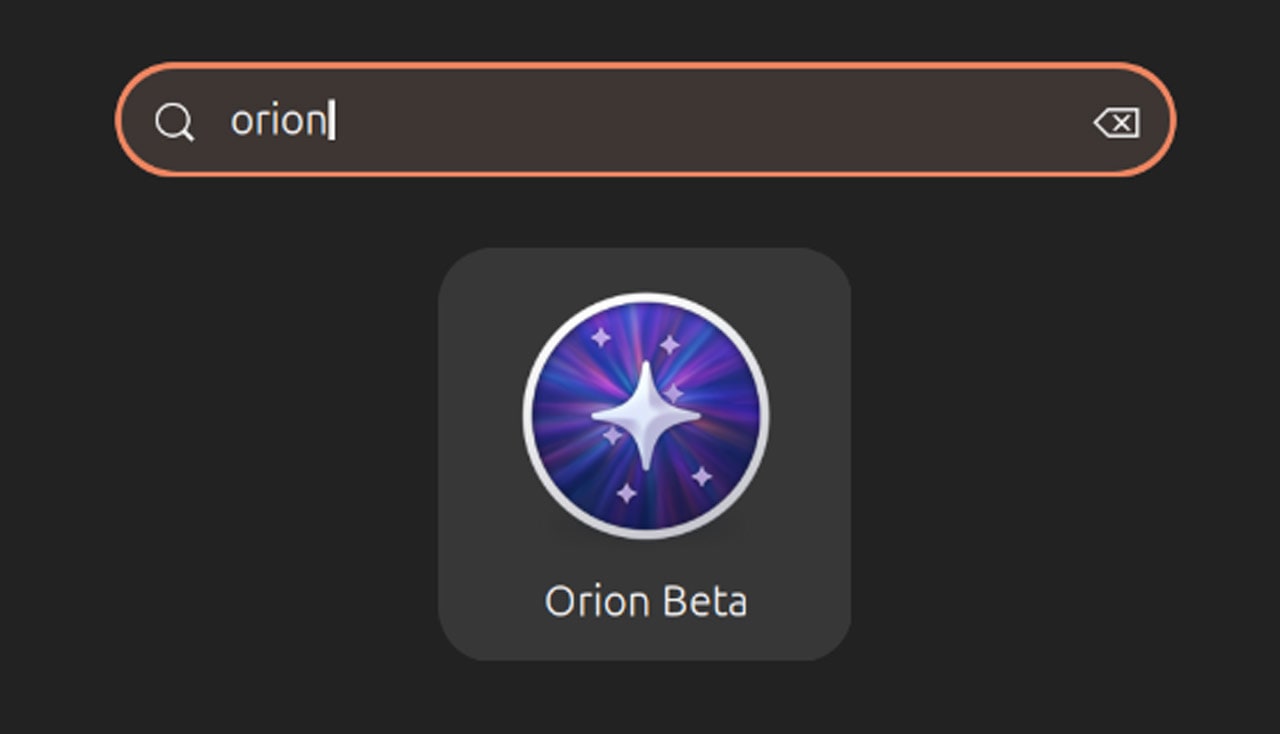
Once installed, launch Orion from your application menu or terminal with flatpak run com.kagi.Orion. The browser will present a welcome screen with setup options.
Step 3: Explore Core Features
Before diving into content blocking and downloads, get familiar with Orion’s basics. Use tab management to organize multiple pages—right-click a tab to pin or mute it. The password manager is built-in; you can import from other browsers or start fresh. Enable history tracking from the Settings > Privacy panel to keep a searchable log. The focus mode (accessible via Ctrl+Shift+F) hides the toolbar for distraction-free reading. These features work identically to the macOS version, so you’re getting a polished experience.
Step 4: Enable the Content Blocker
Orion’s new content blocker is powered by built-in blocklists. To activate it:
- Click the three-dot menu in the top-right corner and select Settings.
- Navigate to the Privacy & Security section.
- Under “Content Blocking”, toggle the switch to On.
- Choose your preferred blocking level—Basic (blocks known trackers) or Strict (blocks all ads and scripts). You can also customize blocklists by checking specific categories.
- Close the settings and reload any open tabs to apply changes. Pages will load significantly faster without ads and trackers.
For advanced users, you can add custom blocklist URLs under “Custom Lists”. The blocker works per-site, so you can whitelist trusted sources.
Step 5: Use the Download Manager
The new download manager replaces the default WebKit download UI with a feature-rich panel. To use it:
- Start a download by clicking any file link on a webpage. Orion will show a progress bar in the status area.
- Click the Download icon (downward arrow) in the toolbar to open the manager.
- From the manager, you can pause, resume, search, or open the file location. Right-click a downloaded item to copy the link or remove it from the list.
- The manager groups downloads by date, and you can sort by name or size. For large files, the estimated time remaining is accurate.
- If you accidentally close the tab or the browser, downloads are queued and can be resumed once Orion restarts.
The download manager integrates with Orion’s history tracking—completed downloads appear in your browsing history unless you clear it.
Step 6: Customize for Improved Workflow
Take advantage of Orion’s additional settings to tailor the browser. Under Appearance, choose a dark theme or accent color. In Tabs, enable vertical tabs for a more modern layout. The Search section lets you change the default search engine to Kagi, DuckDuckGo, or your own. Don’t forget to set up sync if you have a Kagi account—this keeps bookmarks and passwords in sync across devices.
Tips for a Smooth Experience
- Stay updated: Orion for Linux is still in beta, so check for updates weekly. Flatpak users can run
flatpak updateto get the latest build with bug fixes and features. - Report issues: Kagi encourages feedback. If you encounter crashes or missing functionality, submit a bug report via GitHub Issues.
- Content blocker compatibility: Some websites may break with strict blocking. Use the per-site toggle (click the shield icon next to the URL) to temporarily disable it for that site.
- Download manager shortcuts: Press Ctrl+J to open the download manager instantly. Hover over download items to see a preview icon.
- Privacy tweaks: In Settings > Privacy, enable “Do Not Track” and “Always use HTTPS” for extra security. The content blocker works best when combined with these.
- Memory usage: WebKitGTK browsers can be memory-hungry. Close unused tabs regularly, especially if you have many open. Focus mode helps reduce visual clutter and may improve performance on older systems.
With these steps, you’re all set to enjoy a faster, more private browsing experience on Linux with Orion’s latest beta. The content blocker and download manager are just the beginning—Kagi promises more updates as the stable release approaches. Happy browsing!
Related Articles
- Navigating the AI Revolution in Software Development: April 2026 Highlights
- Logitech Unveils Rugged Combo 4c and 4c Touch Keyboard Cases for iPad (10th Gen)
- SELinux Volume Label Changes Go GA: What to Expect in Kubernetes 1.37 and How to Prepare
- 10 Key Updates on GitHub's Enhanced Status Page Transparency
- The USB Drop That Changed Cybersecurity: A Look Back at a Pioneering Penetration Test
- Microsoft Recognized as Leader in API Management: Key Insights and Answers
- 10 Key Facts Behind Apple's $250 Million Siri Settlement
- Celebrating a Centennial Naturalist: A Step-by-Step Guide to Naming a Wasp Species in His Honor